2D vs 3D surfaces
What is the difference between surface types?
2D surfaces are photographic scenes with adjustable layers. 2D surfaces with material and lighting use embedded 3D data to render artwork realistically with lighting, shadows and perspective based on the photo. Plus Surfaces add the ability to resize and rotate. On Apple Vision Pro, Plus Surfaces can also be expanded into full 3D and experienced at real-world scale.
Accessing previous versions
Is there a way to get a previous version of LiveSurface?
Yes. Previous and legacy versions are available from the Downloads page at livesurface.com/download. This can be useful if you're running an older version of macOS or need to access legacy concepts.
Activate using a Studio code
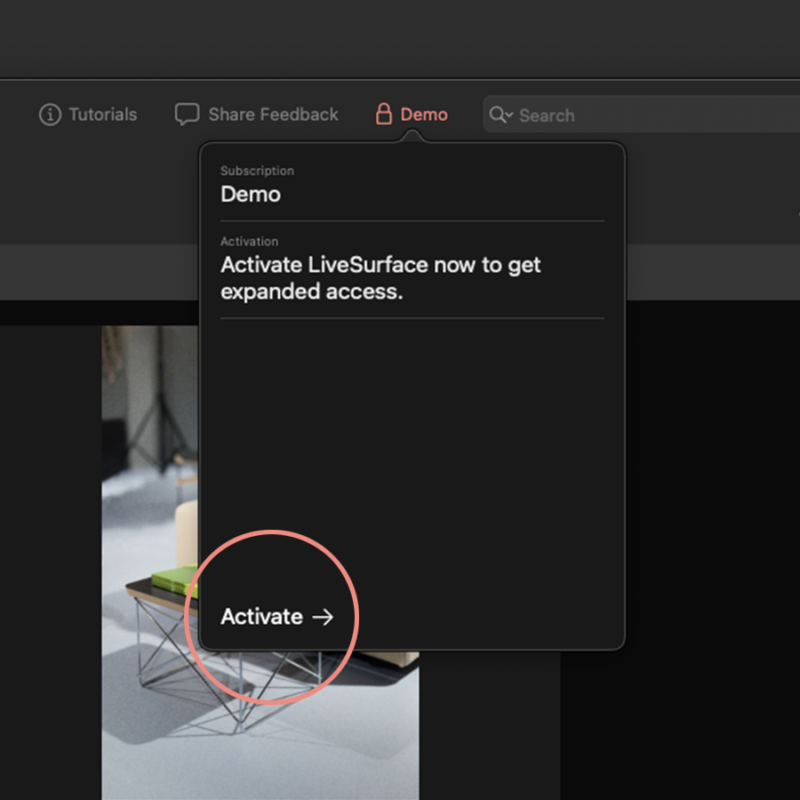
Step 1
From the account popover or Account menu, click Activate to open the activation window.
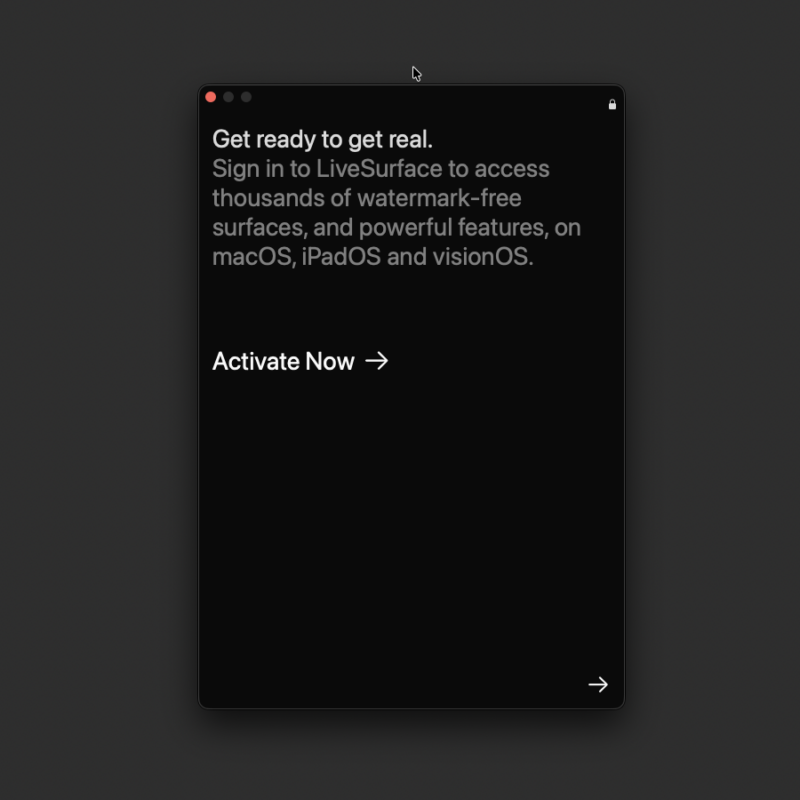
Step 2
Select Activate Now or click the next arrow to begin.
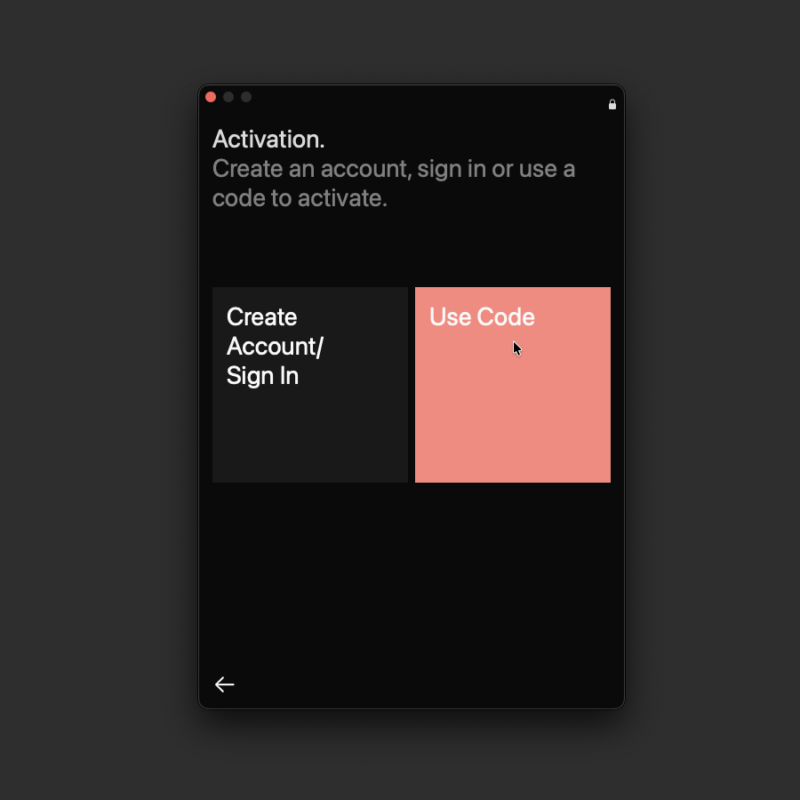
Step 3
Select the Code option.
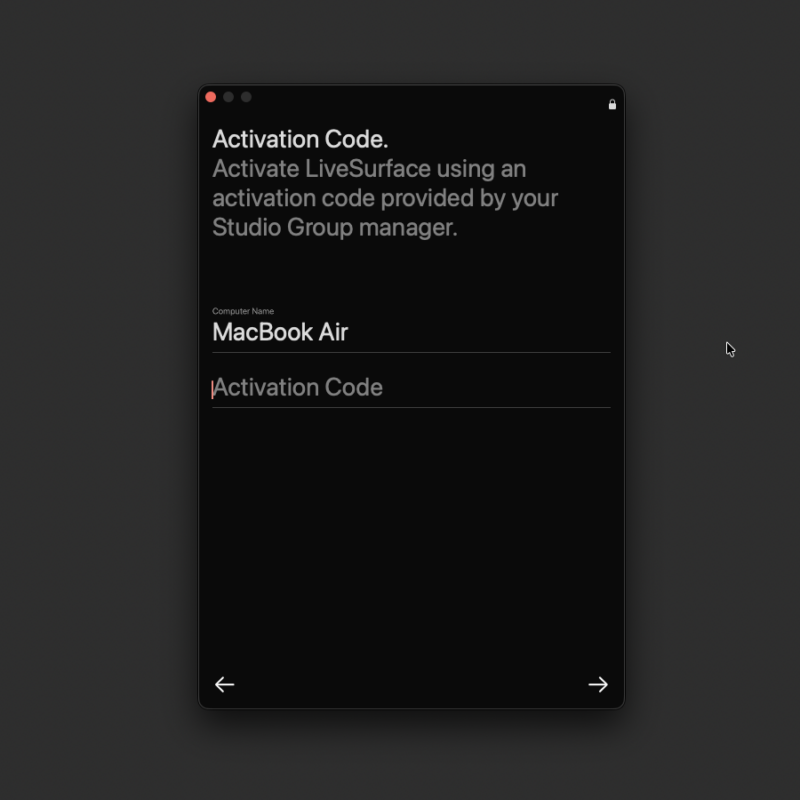
Step 4
Copy and paste the code given to you by your Studio Group admin. Click the continue arrow to complete activation. You can close the activation window once complete. If the code fails then your admin may need to enable it from the Group tab on their account page at account.livesurface.com.
Activate using email/password
Step 1
From the account popover or Account menu, click Activate to open the activation window.
Step 2
Select Activate Now or click the next arrow to begin.
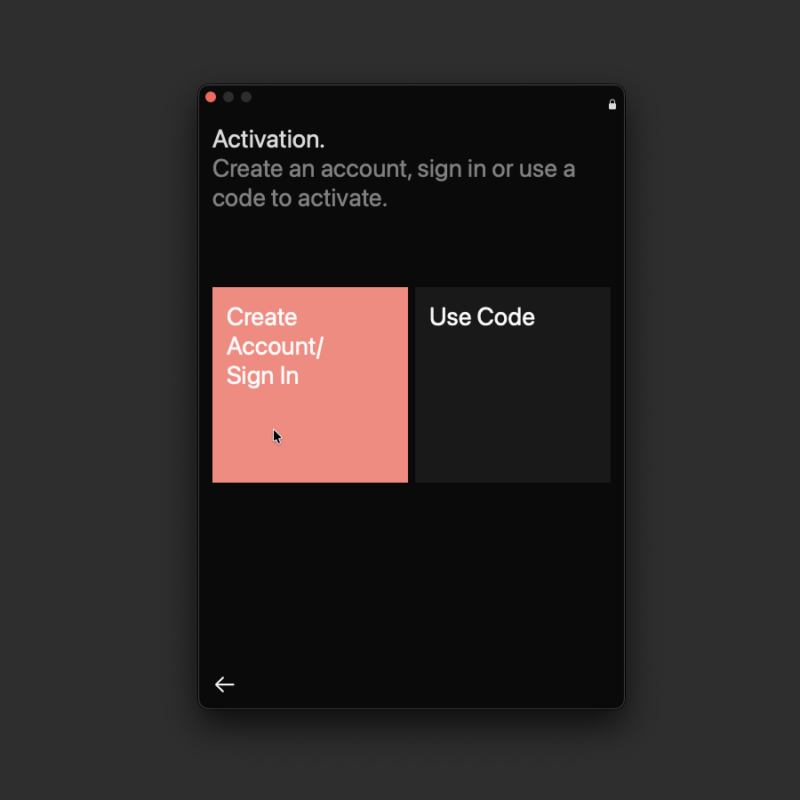
Step 3
Select the Create Account/Sign In option.
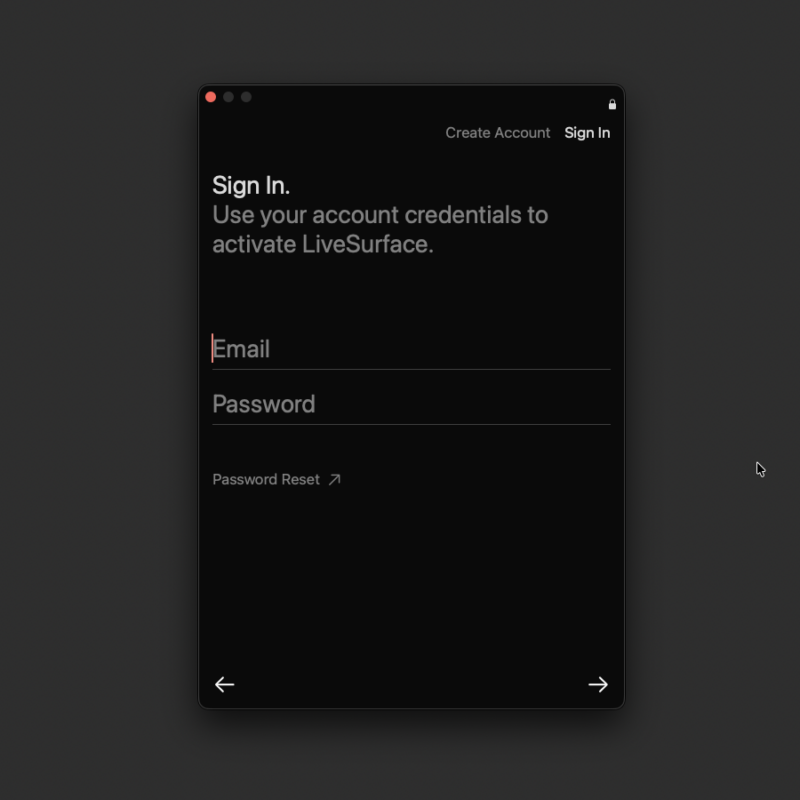
Step 4
Create a new account using your email and a unique, secure password or sign in to your existing account using your email and password. If you already have a subscription, LiveSurface will activate using that subscription and you can close the activation window. If you don’t have a subscription, you’ll be presented with subscription options. Select an option and complete the checkout process to activate.
Adding surfaces on Apple Vision Pro
How do I add surfaces in LiveSurface for Apple Vision Pro?
Open LiveSurface on your Apple Vision Pro, tap the artboard, and use the Add Surface option to browse and place surfaces. You can spin them with a gesture to view from any angle. If tapping Add Surface does nothing, try restarting the app — this is a known issue in some cases.
Apple Vision Pro requirements
What do I need to run LiveSurface on Apple Vision Pro?
LiveSurface for Apple Vision Pro requires visionOS 1.0 or later. It is available from the App Store on Apple Vision Pro.
Background Customization
Can object backgrounds be customized?
Yes! Edit background color and lighting, or drop in custom artwork to serve as your background.
Base Material Customization
Can I change the base material of an object?
Yes! The easiest way to change the base material of an object is to drag-and-drop a full-bleed rectangle that covers the whole artwork area and set that artwork layer to the base material you desire. Then, set this layer behind your other artwork.
Billing dates
When will I be billed and how does the billing cycle work?
Your subscription renews automatically on the same date each month or year depending on your plan. You can check your next renewal date by signing into your account at account.livesurface.com and selecting Subscriptions. You'll see your renewal date listed there.
Collected data
What data does LiveSurface collect?
LiveSurface collects standard account information (name, email, billing address) and diagnostic/usage data to improve the app. It also collects which surfaces you download from the library. Your credit card details are encrypted using SSL and are not stored by LiveSurface. LiveSurface will not resell or redistribute your personal information. For full details see livesurface.com/privacy.